

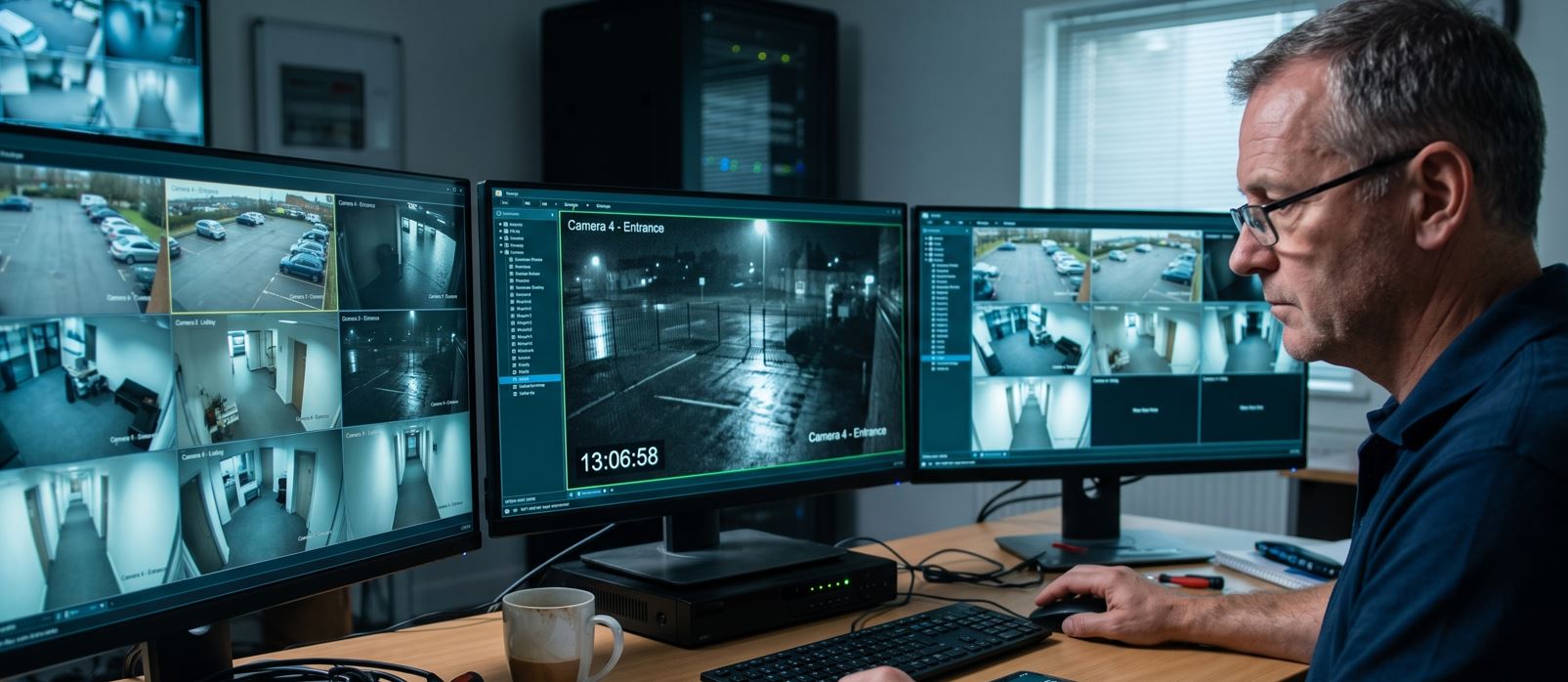
Calculating the exact time difference between your security footage and real-time events is crucial for legal evidence, police reports, and accurate incident tracking. Use our free DVR time calculator below to instantly find the time offset of your CCTV system.
How to Use This Free DVR Time Calculator Online
Finding the correct time in time-changed CCTV footage doesn’t require complex math. Our tool acts as a precise video time difference calculator. Just follow these steps:
- Check the CCTV Monitor: Look at the timestamp currently displayed on your security camera or DVR screen.
- Check the Real Time: Look at your smartphone, smartwatch, or atomic clock to get the exact current time.
- Input the Data: Enter both times into the calculator above.
- Get the Offset: Click calculate. The tool will instantly tell you if your system is running ahead or behind, providing the exact difference in days, hours, and minutes.
Why Do CCTV Systems Lose Time Synchronization?
It is extremely common for digital video recorders (DVRs) and network video recorders (NVRs) to drift from the actual time. If you are wondering why you constantly need a time difference calculator for your cameras, here are the main culprits:
- Dead CMOS Battery: Just like a computer motherboard, your DVR has a small internal battery (usually a CR2032) that keeps the clock ticking when the power is off. If this battery dies, your system time will reset or drift significantly.
- Power Outages: Frequent power cuts can interrupt the internal clock cycle, causing the DVR to lose a few minutes every month.
- NTP Server Issues: Modern systems use Network Time Protocol (NTP) to sync with global atomic clocks via the internet. If your DVR is not connected to the internet or the NTP setting is disabled, it will rely solely on its internal hardware clock, which is prone to drifting.
Guide to Correcting Your CCTV Time Setting
Once you have calculated the offset, you should fix the root cause to avoid future discrepancies. Adjusting your CCTV time setting usually involves a few simple steps across most major brands (Hikvision, Dahua, Swann):
- Right-click on your mouse to access the DVR/NVR Main Menu.
- Navigate to the System, Configuration, or General settings tab.
- Locate the Date & Time or Time Settings section.
- Manually input the correct date and time, OR enable NTP (Network Time Protocol).
- If using NTP, ensure your DVR is connected to your router and set the server to a reliable source like
time.windows.comorpool.ntp.org. - Click Apply or Save.
Note: If your system time resets to a default year (like 1970 or 2000) every time there is a power cut, you must replace the internal motherboard battery.
Looking for a DVR Time Calculator App?
Many installers and security professionals search for a DVR time calculator app free download to use on site.
Instead of downloading a bulky app that takes up storage space on your phone, you can use this webpage as a mobile app. Our tool is 100% mobile-responsive and loads instantly.
Pro Tip: Simply open this page on your smartphone browser (Chrome or Safari), tap the menu icon, and select “Add to Home Screen”. You will have an instant, free app icon on your phone without needing to visit an app store.
Frequently Asked Questions
A video time difference calculator is primarily used by police, private investigators, and security installers to establish the exact real-time of an event captured on video when the DVR’s internal clock is incorrect. This is vital for maintaining an accurate chain of evidence.
Yes. By finding the exact offset (e.g., the DVR is 1 hour and 15 minutes behind), you can apply that exact difference to any timestamp on your recorded footage to determine the true event date and time.
Absolutely. Our tool is completely free, requires no registration, and processes the time calculation instantly on your browser.